
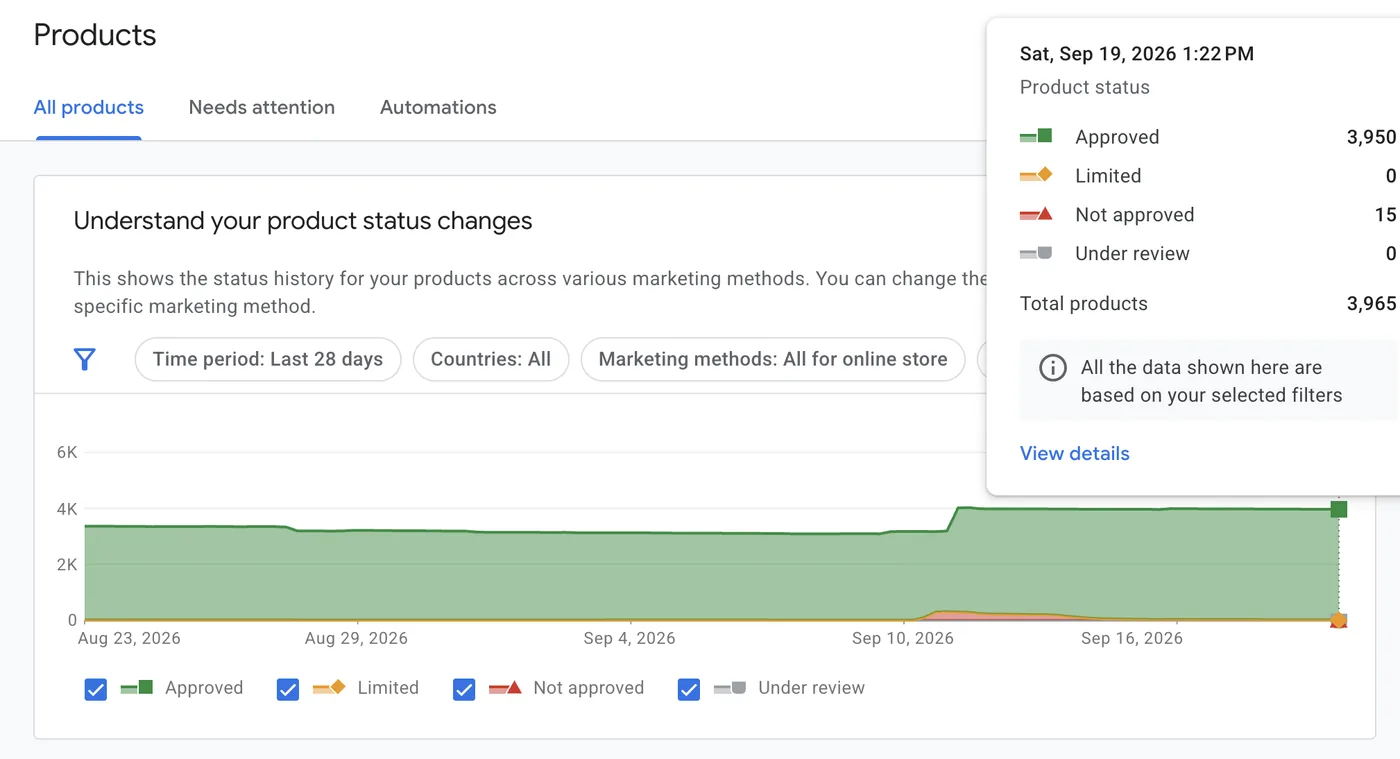
Which products does Google show?
That is the question Merchant Center answers, and it is a more useful one than it sounds. You might have four hundred products on your website and Google might be willing to show three hundred of them. The other hundred are sitting in your account with a problem attached, invisible to shoppers and invisible to you, because nothing emails you when a product goes dark.
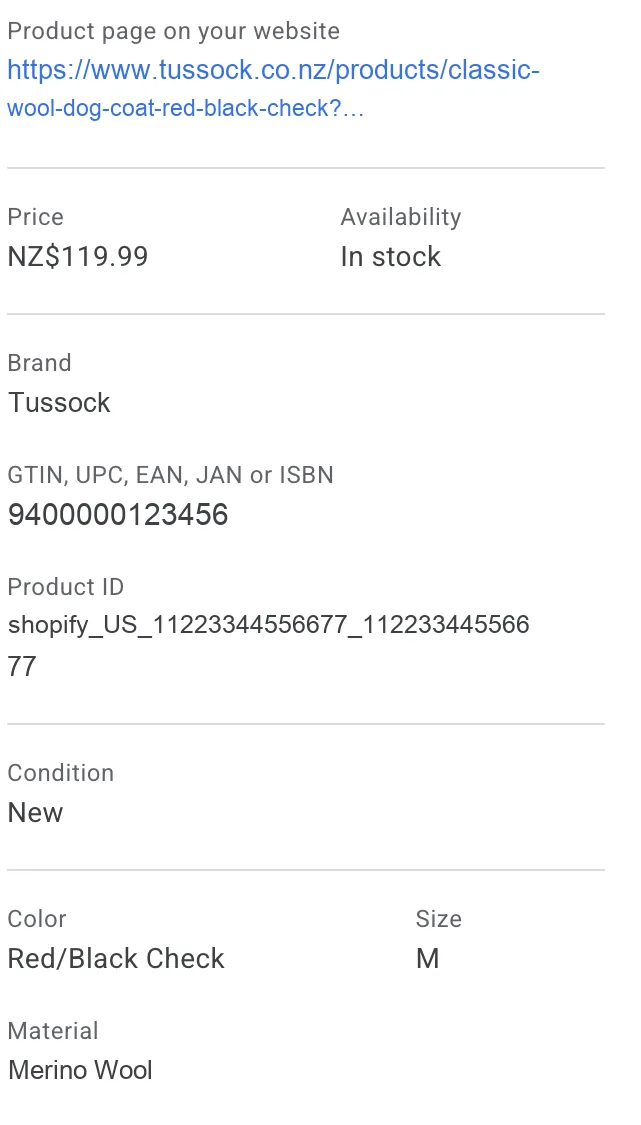
Merchant Center is where your product data lives so Google can put it in front of shoppers. That product data is called the feed, and each product in it is an offer. What Merchant Center is not is an ad platform. You set no budgets here and place no bids. You keep the catalogue accurate; other systems spend money against it.
Merchant Center is the shelf, not the salesperson. It decides what is in stock and how each item is labelled. Google Ads decides how hard to push each item at shoppers.
How your products reach shoppers
Three stages, and the same feed drives all of them. Understanding this one picture is most of what separates a store that fixes the right thing from a store that raises its budget and wonders why nothing moved.
Your store
Product data
title, price, stock, photo, barcode
Merchant Center
The feed
one row per product, each one approved or disapproved
Where shoppers see it
Three placements
free listings, Shopping ads, Performance Max
Costs nothing
Free listings on the Shopping tab and other Google surfaces. Approved products are eligible automatically.
Bought in Google Ads
Shopping ads and Performance Max run on the same feed, funded from your Google Ads budget.
The consequence is worth stating plainly. A campaign can only promote what the feed has made eligible. If a product is missing, out of stock or disapproved, no budget reaches it, no bid strategy rescues it, and no amount of campaign tuning will make it appear. Fixing the feed is often the fastest performance win available in a store's whole account, because it unlocks inventory the campaigns were never allowed to touch.
The four numbers worth reading
Merchant Center has a Performance report, and it tracks what Google showed and what shoppers clicked. These are pre-click numbers: they stop at your website's front door and tell you nothing about what happened inside. Four of them answer almost everything.
How much of my catalogue can Google even show?
Approved products, against the number you uploaded. This gates all three of the numbers below.
380 approved of 400 submitted is fine. 280 of 400 means a quarter of your shop is invisible.Products · DiagnosticsHow often is it being shown?
Impressions: how many times your listings appeared. Read it by product to see what Google favours.
A product with 12,000 impressions and 40 clicks is being shown and ignored.Performance · by productHow many shoppers came through?
Clicks: shoppers who reached your product page. The handover point between Google and your website.
Clicks are where Merchant Center's job ends and your product page's job starts.Performance · by productIs the listing doing its job?
CTR: clicks divided by impressions. The honest read on your title, photo and price together.
50 clicks from 1,000 impressions is a 5% CTR.Performance · by productThe useful part is the breakdown. You can read all four by product, by brand and by category, which turns a vague sense that Shopping is underperforming into a named list of items to fix. A product shown ten thousand times and clicked forty is telling you something specific about its photo, its title or its price, and none of those live in the campaign.
Feed quality is the ceiling on performance. A great campaign cannot outrun a wrong price or a vague title.
Setting it up
Five steps. The first four cost nothing and can be done in an afternoon; the fifth only matters when you want to pay for reach.
- 1Create the account and claim your website
Sign in at Merchant Center with the Google account that owns your business, enter your store details, then verify and claim your website domain. Claiming is what links the feed to the site it sells from.
10 min - 2Get your products in
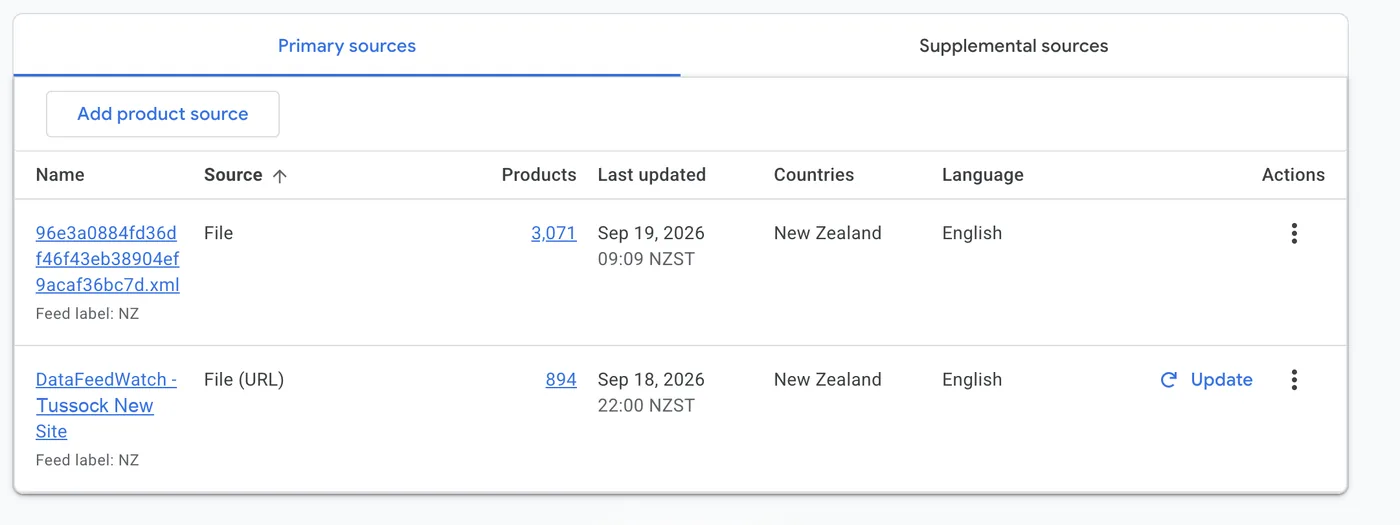
Most stores never build a file by hand. Shopify, WooCommerce and BigCommerce all have an app that pushes the catalogue for you. A spreadsheet upload or a scheduled fetch from a URL both work if you have no app.
15 min - 3Clear the disapprovals
Open Diagnostics and work the list. The first pass is the long one, and it is usually the same three faults repeated: a price that does not match the page, a missing barcode, or an image Google cannot fetch.
20 min - 4Turn on free listings
Under your account's programmes, opt into the free listings surface. It costs nothing, it uses the feed you have already fixed, and it is the only part of Shopping that needs no advertising budget at all.
2 min - 5Link Google Ads, when you want to pay for reach
Link the two accounts from Merchant Center, then build a Shopping or Performance Max campaign in Google Ads. Do this after step three, never before: paying to promote a broken feed is the most expensive mistake on this page.
5 min
Three things beginners misread
The wrong read
"We had 40,000 impressions, so 40,000 people saw our products."
The right read
"Our listings appeared 40,000 times. One shopper scrolling the Shopping tab can account for a dozen of those."
Misread one
Impressions are not shoppers
An impression counts a listing being shown, not a person seeing it. The same shopper comparing prices across a results page generates an impression for every product of yours on that page, and the same product shown on three different searches counts three times.
This matters because impressions are the denominator of your CTR. A product that appears in wide, vague searches will show a low CTR and look broken when it is simply being matched to the wrong shoppers, which is a title and category problem, not a photo problem.
The wrong read
"Shopping traffic fell off a cliff last Tuesday. The campaign must have broken."
The right read
"Sixty products were disapproved last Tuesday after a price update. The campaign is fine; it has nothing left to sell."
Misread two
A disapproval is silent
When Google disapproves a product, nothing interrupts you. The item stops being eligible, your campaign quietly redistributes its budget to whatever is left, and the only visible symptom is a number going down somewhere else.
This is why Diagnostics is the first screen to open, before the Performance report and long before the campaign. A sudden drop in Shopping traffic is a feed question until proven otherwise.
The wrong read
"The sale price is in the feed, so shoppers will see $79."
The right read
"The feed says $79 and the page still says $99, so Google has disapproved the item rather than shown either."
Misread three
The feed price and the page price must match
Google checks the price in your feed against the price on the landing page, and a mismatch is a disapproval rather than a warning. Currency counts, tax display counts, and so does the timing: a sale that starts on your website at midnight but reaches the feed at the next scheduled fetch leaves a window where every discounted product is in breach.
Stores that run frequent promotions get bitten by this most, which is an argument for an app or an automated fetch over a manual file. The same rule applies to stock: an item your website sold out of an hour ago is still in_stock to Google until the feed catches up.
In Clearly
Merchant Center is not connectable in Clearly yet. The connector is built and tested, and it is waiting on Google to approve our access to the Content API. Until that lands, the sources you can connect are Google Analytics, Search Console, Google Ads, Meta Ads, LinkedIn Ads, your Facebook and Instagram pages, and your own Google Sheets. Our integrations page states the current position for every source and is updated the day anything changes.
What it will do when it lands is the thing this guide has been circling. Merchant Center on its own tells you which products got attention. Google Ads on its own tells you where the money went. Side by side in one report, they answer the question neither can: are the products getting attention the same ones getting budget? A high-CTR product with almost no spend behind it, or a heavily funded one that shoppers scroll past, is a decision you can act on in an afternoon, and it is invisible while the two data sets live in separate browser tabs.
Feed attribute cheat sheet
| Attribute | What it is | Why it matters |
|---|---|---|
id | Unique product identifier, usually your SKU | Keeps reporting and history stable; changing it resets a product's data |
title | The product name shoppers see | Google matches it to searches, so a clear title drives impressions and CTR |
price | Selling price with currency | Must match the landing page or the item is disapproved |
availability | In stock, out of stock, or backorder | Out-of-stock items stop showing, so stale values waste eligibility |
image_link | URL of the main product image | The image is the listing; a poor one sinks CTR even at a good rank |
gtin | Barcode, the global trade item number | Lets Google identify the exact product and match it to real demand |
google_product_category | Category from Google's own taxonomy | Improves matching and lets you read performance by category |
brand | The product's brand name | Powers the brand breakdown in the Performance report |
Common questions
Do I need Google Ads to use Merchant Center?
No. Free listings need only an approved feed, and they cost nothing per click. You need Google Ads only for Shopping ads and Performance Max, which buy extra reach against the same feed. Plenty of small stores run free listings alone for months before spending anything.
Why was my product disapproved?
Three faults cover most of them: the feed price does not match the landing page, the item has no barcode where Google expects one, or the image URL cannot be fetched. Diagnostics names the reason per product. Fix the cause in your store rather than editing the feed by hand, or the next automatic update will undo your work.
Is it Merchant Center or Merchant Centre?
Same product. Google's UK and New Zealand locales spell it "Centre" and the US spells it "Center". This guide uses the US spelling because that is what most people search for, and you will see both inside Google's own interfaces.
How often does the feed update?
A scheduled fetch runs once a day by default, which is fine for a stable catalogue and dangerous during a sale. A store app usually pushes changes far more often, and the Content API is close to immediate. If your prices or stock move during the day, the gap between your website and your feed is where disapprovals come from.
Can I see revenue in Merchant Center?
No. Merchant Center stops at the click. Revenue and conversion rate live in Google Analytics and in Google Ads, which is why reading the two together matters. Merchant Center answers "which products did Google show, and did shoppers click", and that is the half of the question the sales reports cannot see.
Where to go next
Open Merchant Center and read Diagnostics before anything else, because an approved catalogue is the gate on every number below it. Then read the Performance report by product, sorted by impressions, and look down the CTR column for the items Google is happy to show and shoppers refuse to click. Those are your titles and photos, and fixing them costs nothing but attention.
The series
All nine Platform 101s, in setup order
What each platform does, what it costs, how to set it up, and what its numbers mean.